IMPORTANT UPDATE:
Effective 22 August 2026, BSNSecure activation can only be performed at any BSN Automated Teller Machine (ATM) or Cash Recycling Machine (CRM). This additional verification measure offers a quicker, easier, and more secure way to register for myBSN Mobile App, providing greater protection for your banking transactions and a more seamless user experience.
Note: Customers below the age of 18 must visit the nearest BSN Branch with their parent or legal guardian to activate BSNSecure.
WHAT IS BSNSecure?
BSNSecure is an enhanced security feature that helps keep your online banking transactions safe and secure. Available on myBSN Internet Banking and myBSN Mobile App, it allows you to approve transactions quickly and seamlessly with just a few taps.
BENEFIT OF BSNSecure
Protection against unauthorised transaction fraud and TAC-related scams.
Transactions can be securely authorised without waiting for an SMS TAC.
Fast and more convenient transaction approvals via myBSN Mobile App.
Ensures that only you can authorise and complete your transactions.
STEPS TO REGISTER BSNSecure
Complete your myBSN Internet Banking Registration.
Complete your myBSN Internet Banking Registration.
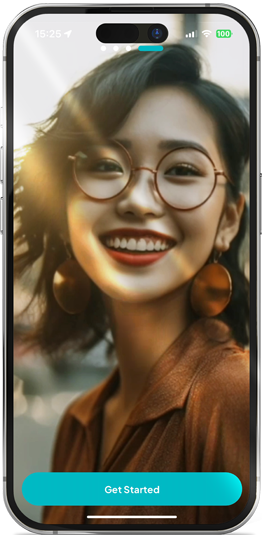
Download and launch the myBSN Mobile App, then click “Get Started”.
Download and launch the myBSN Mobile App, then click “Get Started”.
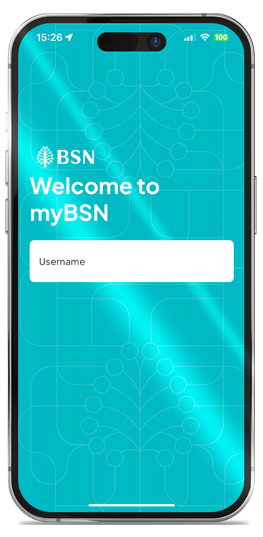
Log in using your registered Username and Password.
Log in using your registered Username and Password.
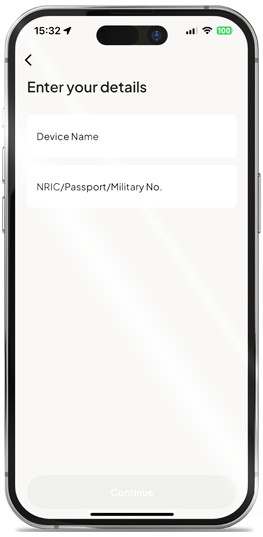
Enter your Device Name and ID Number, then click “Submit”.
Enter your Device Name and ID Number, then click “Submit”.
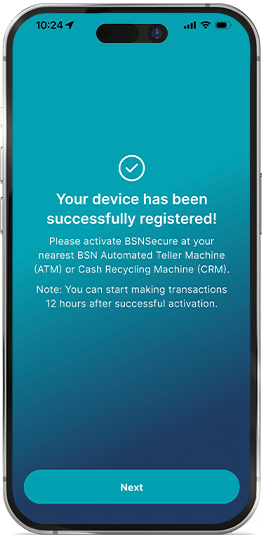
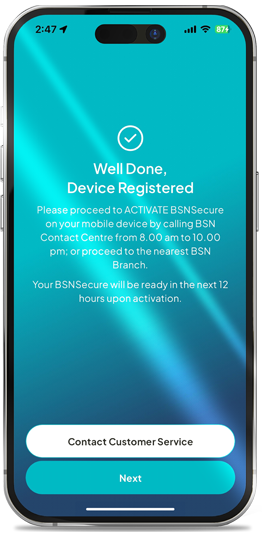
Your registration is complete successfully.
Your registration is complete successfully.
Activate BSNSecure at your nearest BSN ATM or CRM to enjoy secure and seamless banking transactions.
Activate BSNSecure at your nearest BSN ATM or CRM to enjoy secure and seamless banking transactions.
Complete your myBSN Internet Banking Registration.
Complete your myBSN Internet Banking Registration.
Download and launch the myBSN Mobile App, then click “Get Started”.
Download and launch the myBSN Mobile App, then click “Get Started”.
Log in using your registered Username and Password.
Log in using your registered Username and Password.
Enter your Device Name and ID Number, then click “Submit”.
Enter your Device Name and ID Number, then click “Submit”.
Your registration is complete successfully.
Your registration is complete successfully.
Activate BSNSecure at your nearest BSN ATM or CRM to enjoy secure and seamless banking transactions.
Activate BSNSecure at your nearest BSN ATM or CRM to enjoy secure and seamless banking transactions.
HOW TO ACTIVATE BSNSecure AT BSN ATM OR CRM?
(For new users and existing users who wish to activate or re-activate BSNSecure)
BSN Automated Teller Machine (ATM)
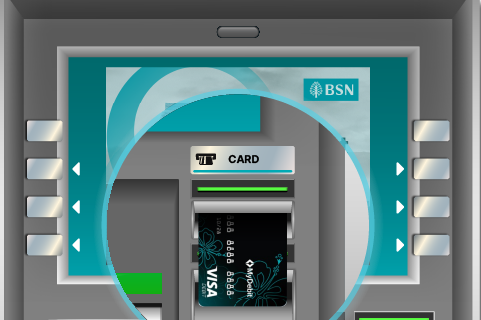
STEP 1
Insert your BSN Debit/Credit Card that is registered with myBSN Internet Banking
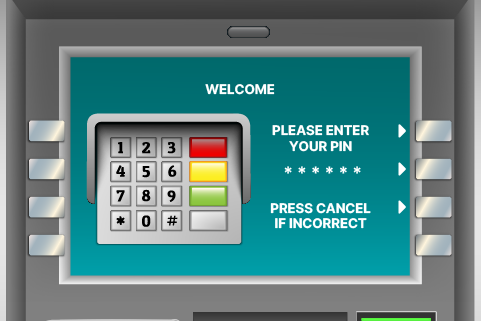
STEP 2
Enter your card PIN.
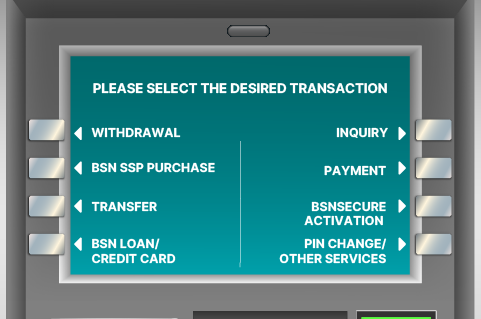
STEP 3
Select BSNSecure Activation
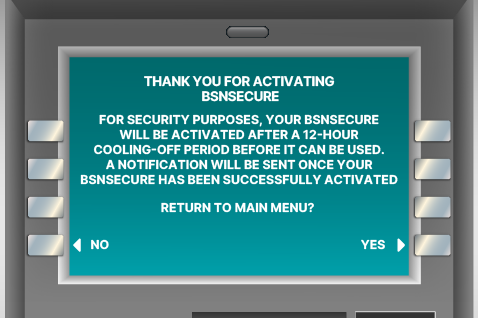
STEP 4
Review and confirm the information displayed, then click YES
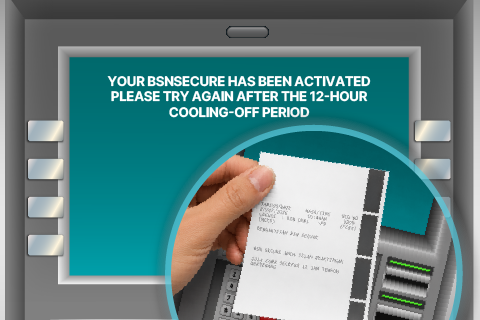
STEP 5
BSNSecure has been successfully activated
BSN Cash Recycler Machine (CRM)
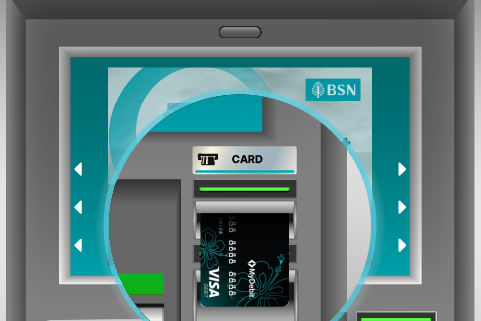
STEP 1
Insert your BSN Debit/Credit Card that is registered with myBSN Internet Banking
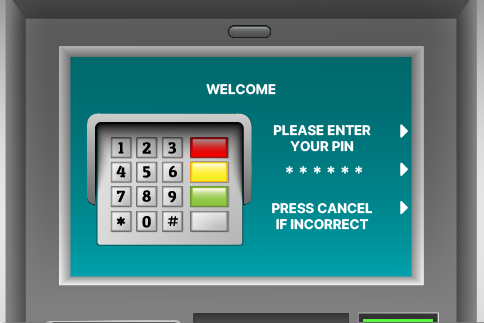
STEP 2
Enter your card PIN
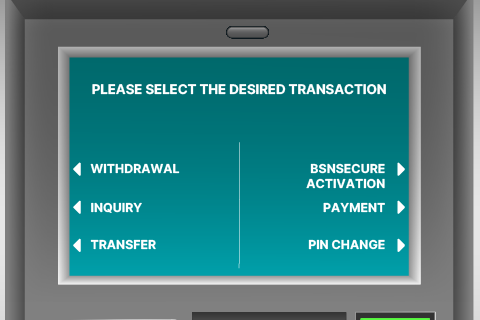
STEP 3
Select BSNSecure Activation
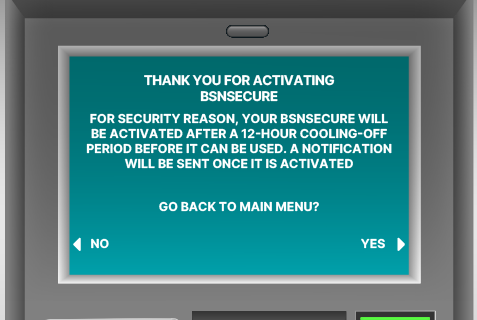
STEP 4
Review and confirm the information displayed, then click YES
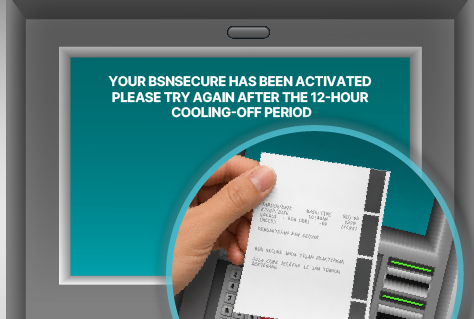
STEP 5
BSNSecure has been successfully activated
NOTE:
- Once BSNSecure has been activated on the myBSN Mobile App, you will need to wait at least 12 hours before using it to approve transactions. This is a security measure to prevent unauthorised activation.
- Upon activation, BSNSecure will automatically be used to authorise all myBSN Internet Banking transactions, replacing SMS TAC, which was discontinued on 1 July 2023.
HOW TO APPROVE TRANSACTIONS ON myBSN MOBILE APP VIA BSNSecure?
| STEP 1: | Complete your transaction and a push notification will be sent to your registered device. |
| STEP 2: | Once you’ve received the push notification, tap on it to view your notification then ‘Approve’ or ‘Reject’ the transaction within 30 seconds. |
NOTE:
- If you do not receive a BSNSecure push notification due to connectivity issues, you can use BSNSecure TAC to authorise your myBSN transactions.
- A 6-digit BSNSecure TAC will be generated in the myBSN Mobile App. Use this code to authorise eligible transactions performed via myBSN. The Secure TAC code refreshes automatically every 30 seconds.
Type of Transaction required BSNSecure
| Transaction Type | Authentication Required |
| No Authentication Required |
| BSNSecure |
| BSNSecure TAC/SMS OTP |